Any AI subtitle tool that pairs speech recognition with automatic timing can generate subtitles. Vmaker AI does it in one click: upload your video, choose Subtitles, and the AI transcribes the audio, times each line, and places editable captions on your video.
Free AI Subtitle Generator
Upload your video, get accurate editable subtitles in minutes, style them your way, and export in one click.
Generate Subtitles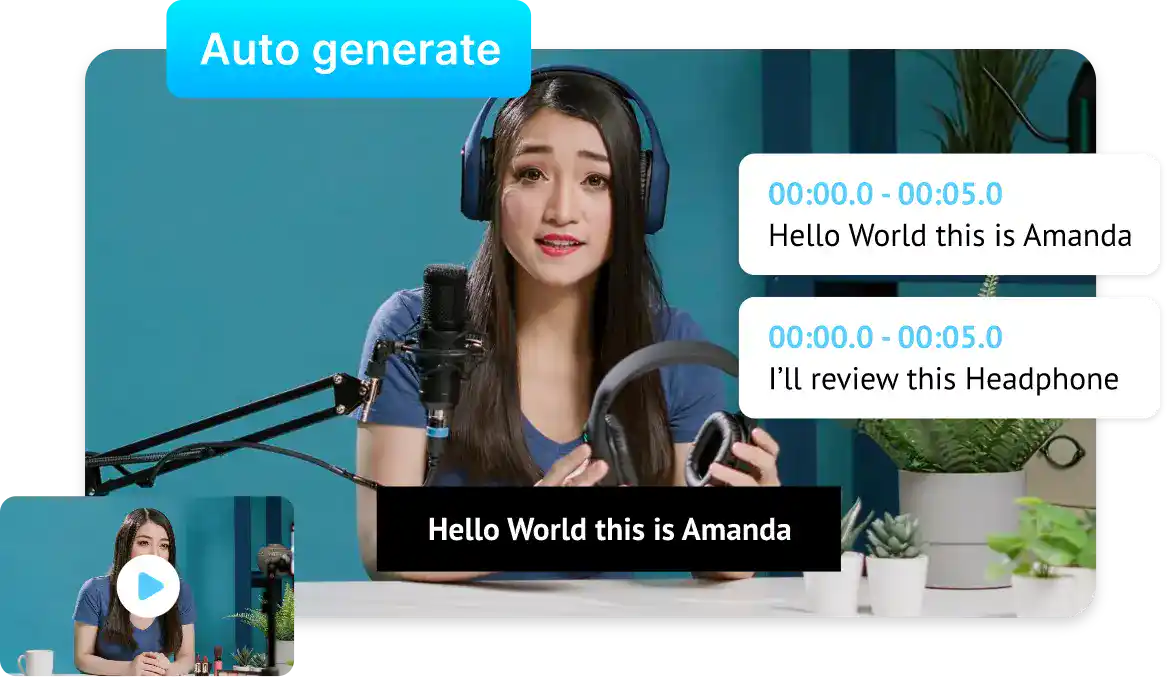
2,000,000+
Users


How to Automatically Add Subtitles to a Video in One Click
1. Upload Your
Video
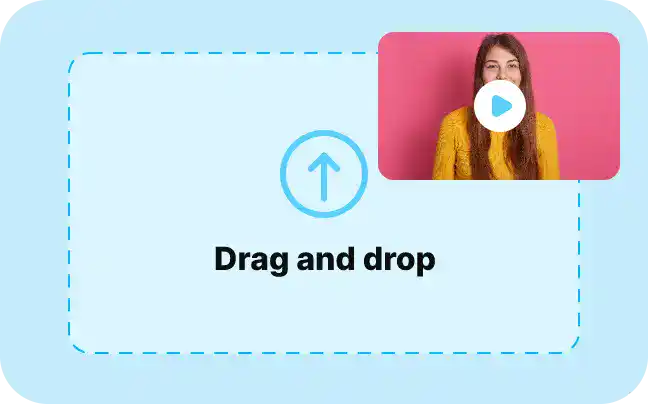
Start from any video on your device or pick one from My Library or My Uploads. No prep work needed before subtitling.
2. Auto-generate Captions
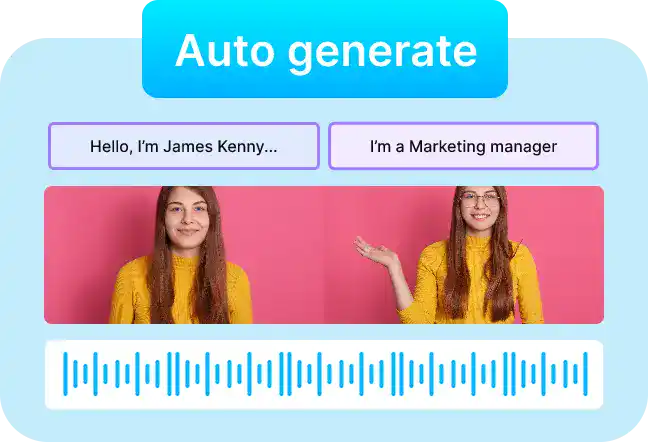
Get a fully timed, editable transcript in minutes. Open Subtitles in the left panel, click Auto-Generate, and the AI transcribes and times every line.

3. Customize and Export
Make the captions match your brand. Choose from 100+ styles and 25+ animations, correct any line, and export your subtitled video in one click.
What You Get with the Vmaker AI Subtitle Generator
Subtitles in 75+ Languages
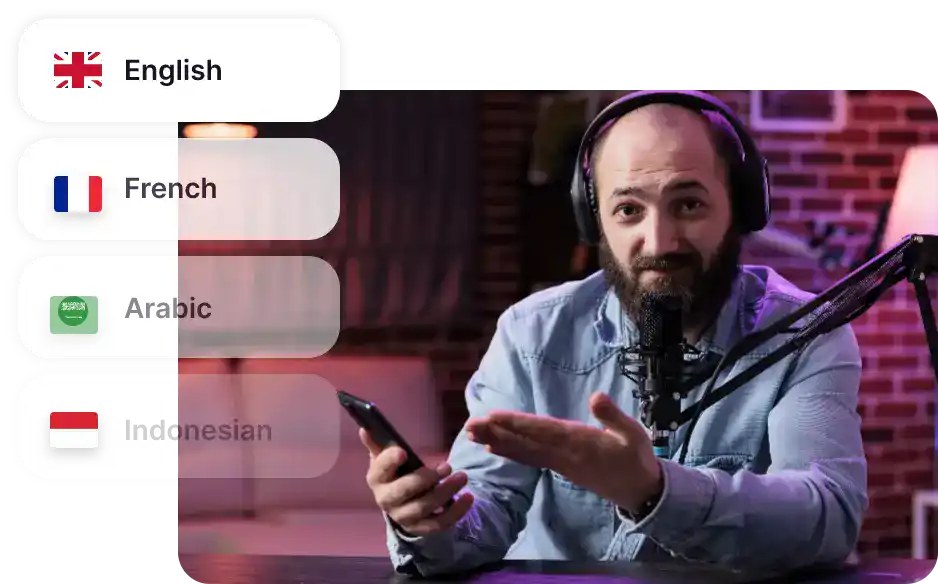
Generate accurate subtitles in 75+ languages, so one upload can serve viewers in every market you publish to.
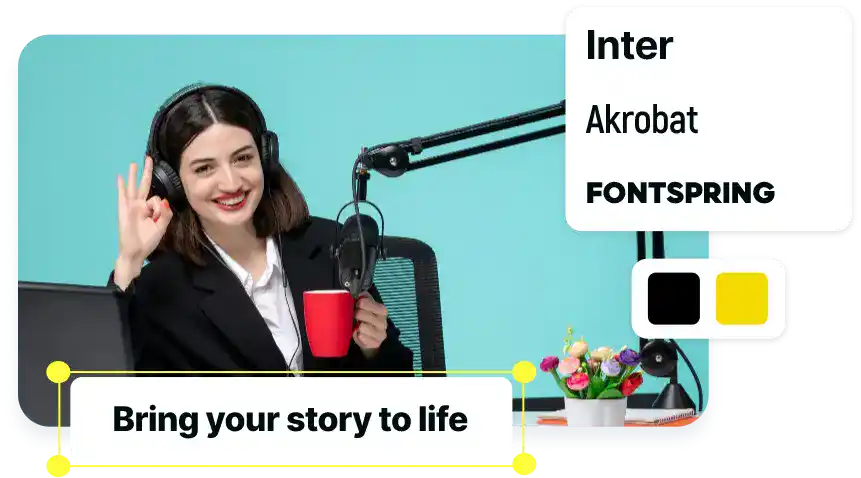
100+ Styles and 25+ Animations
Pick fonts, colors, and motion from a library inspired by top creators, and make every caption match your brand.
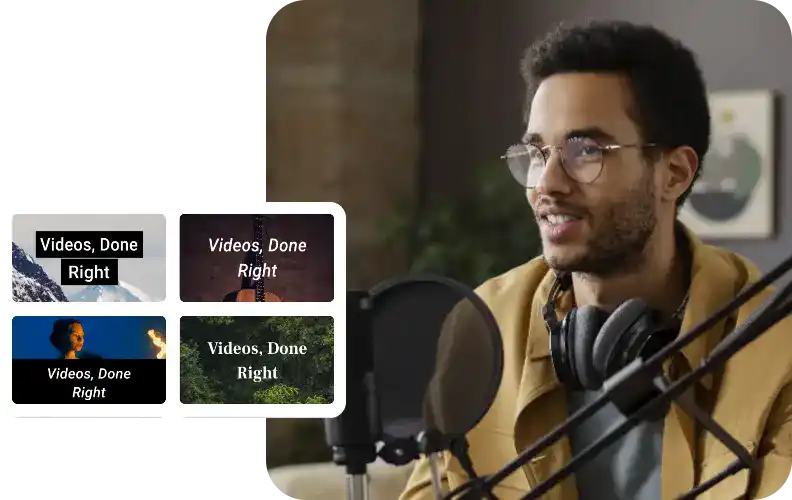
20+ Subtitle Presets
Start from a ready-made look. Choose from 20+ presets and tweak any of them until the captions fit your video.
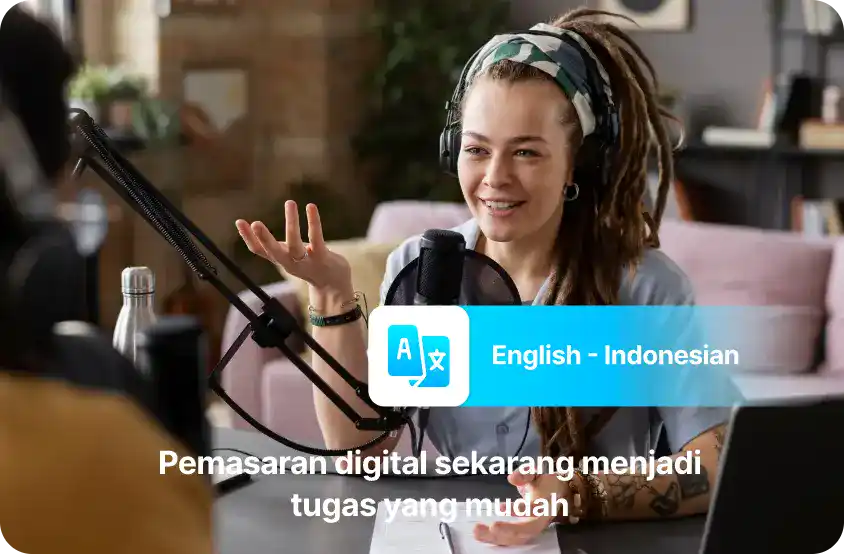
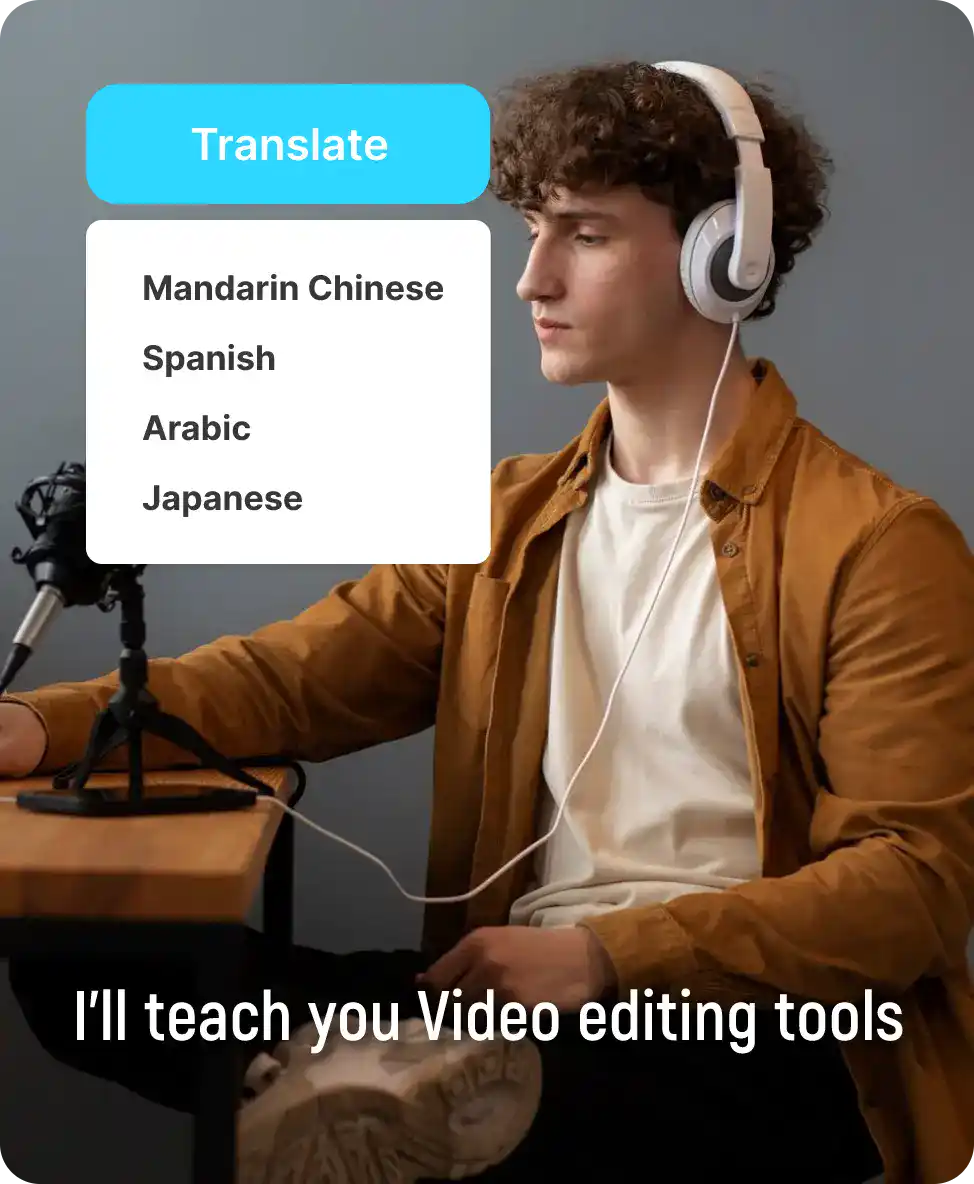
AI Subtitle Translator
Translate finished captions into 100+ languages in minutes and reach global audiences without re-editing the video.
Here’s Why Your Videos Need Subtitles Today
Reach Viewers in Their Own Language
Generate subtitles in 75+ languages and translate them into 100+ more, so the same video works in every region you publish to.
Keep People Watching
Clear, well-styled captions hold attention through the whole video, especially for viewers scrolling with the sound off.
Help Your Videos Get Found
Subtitles give platforms and search engines readable text to index, which supports discovery for every video you publish.
Win the Mute Scroll
Most social feeds autoplay silently. Captioned videos stop more scrollers and hold them longer than videos that depend on sound.
Make Every Video Accessible
Subtitles serve viewers with hearing difficulties and anyone watching in sound-sensitive settings, at work, in transit, or late at night.
Where Teams Use AI Subtitles
Shorts, Reels, and TikTok
Caption short-form clips so the hook lands even on mute, and style the captions like the creators your audience already follows.
YouTube and Long-Form
Subtitle tutorials, podcasts, and explainers to lift accessibility and watch time across longer videos.
Training and L&D
Caption onboarding and course libraries so every learner can follow along, then roll out multilingual subtitles for regional teams without re-recording anything.
Marketing and Product
Subtitle demos, ads, and webinar cuts so the message survives autoplay on every channel where it runs.
Some snippets from Customer’s Love
4.7 (103)
Add Subtitles, Translate, and Customize in just one click!
Generate SubtitlesAuto Subtitle Generator - FAQs Answered
Subtitles make videos accessible to viewers with hearing difficulties, keep muted autoplay viewers engaged, and give platforms readable text that supports discovery. Subtitled videos generally hold attention longer and travel further across languages and regions.
Upload your video to an AI subtitle generator, run auto-transcription, review the lines, and export. In Vmaker AI this takes minutes: the AI handles transcription and timing, and you can correct or restyle any line before downloading the finished video.
Yes. You can upload a video, generate subtitles, and edit them on the free plan. Free plan exports include a watermark, and upgrading to any paid plan removes it.
Caption the video before you upload it to YouTube. In Vmaker AI, upload your video in a horizontal dimension, click Subtitles, auto-generate the captions, style them, and export the finished video ready for YouTube.
Upload the existing file to a subtitle tool, wherever it was originally recorded or edited. Vmaker AI works with videos from your desktop or Google Drive, so you can caption content made on any platform.
No. Instagram does not let you add or edit captions on a video after it is posted. Use Instagram's native auto-captions before posting, or subtitle the video first with a tool like Vmaker AI so you control the styling.
There are two ways. Instagram's built-in auto-captions work at posting time but offer limited styling. Subtitling the video before upload with an AI tool like Vmaker AI gives you 100+ styles and 25+ animations, so your Reels captions match your brand.
An SRT file is a plain text transcript with timestamps, and adding one to a video needs an editor that reads the file and syncs each line to the timeline. Vmaker AI works differently: it generates the subtitles directly from your video's audio, so there is no SRT file to prepare or upload. Generate the captions, correct any line, and export.
Vmaker AI's subtitle generator is free to use, and videos exported on the free plan include a watermark. Upgrading to any paid plan removes the watermark from every export. Earlier versions of the free plan exported without a watermark, which is why older mentions of watermark-free downloads still appear on the web.
Explore More Video Tools
AI Video Editing Tool
AI Video Generator
AI Subtitle Generator
AI B-Roll Generator
Text to Video AI
Video Enhancer AI
Audio to Video AI
Long to Short Video AI
AI Clip Maker
AI Video Background Remover
AI Highlight Video Maker
AI Video Dubbing
AI Document to Video
PDF to Video
PPT to Video
Script to Video AI
AI Reel Generator
Repurpose Video AI
Podcast Clip Generator